Set Static Ip On Ubuntu Server

So, you’ve got an Ubuntu server humming away somewhere—maybe in a closet, under a desk, or even on a cloud you can’t see. Good for you! But does it always seem to vanish when...
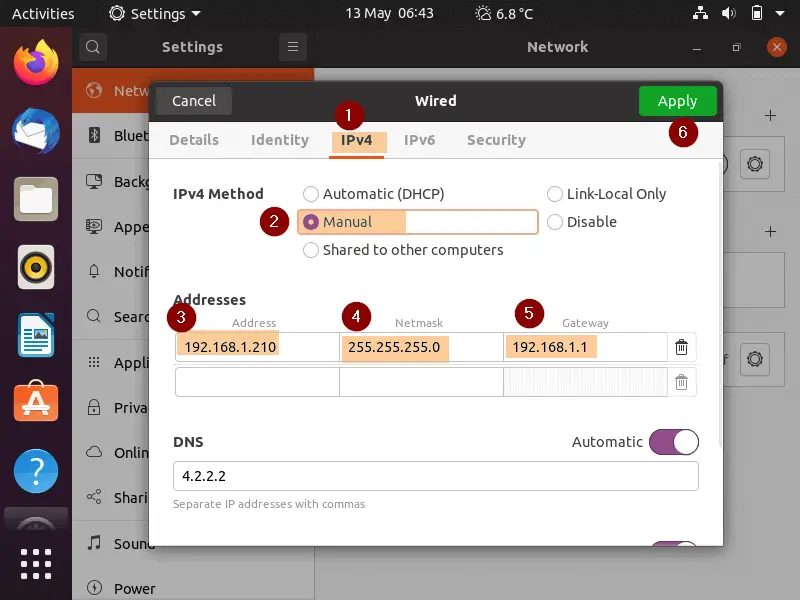
So, you’ve got an Ubuntu server humming away somewhere—maybe in a closet, under a desk, or even on a cloud you can’t see. Good for you! But does it always seem to vanish when your network has a moment of chaos? That’s because it’s chasing a floating, unpredictable IP address like a dog chasing a car—and it never catches it.
Let’s fix that today. Setting a static IP on your Ubuntu server isn’t just some tech support chore; it’s like giving your server a permanent parking spot in your digital garage. No more hunting it down with a flashlight every time the router reboots.
Think of a dynamic IP as a rental car that changes every few hours. A static IP is your own car, always in the same spot, with your name on the dashboard. That’s the power you’re about to unlock—reliability, predictability, and a whole lot less head-scratching.
Must Read
Why Bother? (Spoiler: It’s Fun)
Imagine you’re hosting a game server, a media streamer, or a DIY smart home hub. Every time your server gets a new IP, your friends can’t connect, your movies stop playing, and your lights won’t turn on. That’s not fun. That’s a party foul.
With a static IP, your server becomes a trusted friend who always answers the door. You can ssh in from anywhere without checking a dashboard first. It’s the difference between a flaky Wi-Fi handshake and a rock-solid handshake that says, “I’m here, let’s roll.”
Plus, you’ll feel like a network wizard. You’ll casually mention, “Oh, I just set a static IP on my Ubuntu server,” and watch jaws drop. It’s a low-key flex, and you deserve it.
Getting Your Hands Dirty (The Juicy Part)
Alright, roll up your sleeves. First, you need to find what your current network looks like. Run ip addr show or ifconfig in your terminal and look for something like 192.168.1.x or 10.0.0.x. That’s your server’s current address—like its temporary nickname.
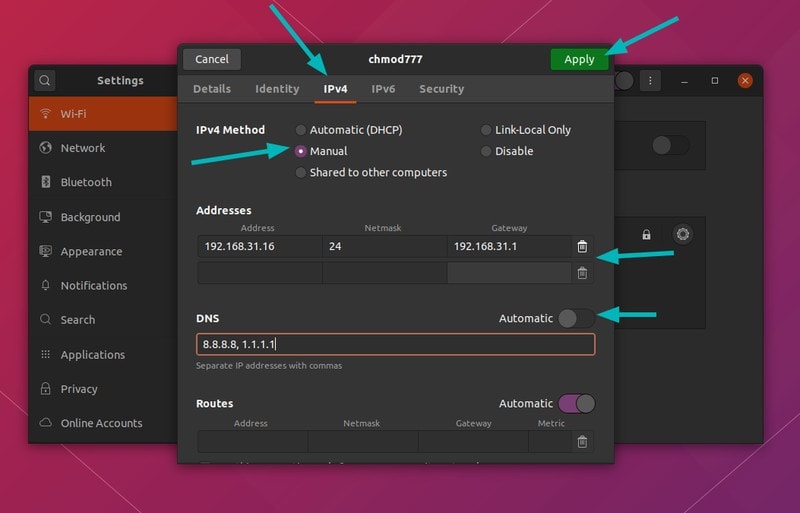 How To Configure Network Static Ip Address On Ubuntu 1910
Next, check your gateway (usually your router’s IP, like 192.168.1.1) and your DNS server (often the same as the gateway, or 8.8.8.8 for Google). Write them down—you’ll need ’em like a map to a treasure chest.
Now, the magic happens in a file called 00-installer-config.yaml (or similar, depending on your Ubuntu version). Navigate to /etc/netplan/ and open that file with sudo nano. Don’t panic—it’s just a recipe for your network.
You’ll see something like dhcp4: true. Change that to static and add your chosen IP address, gateway, and DNS. It looks a bit like this: addresses: [192.168.1.100/24]—where .100 is your new, permanent parking spot. Then sudo netplan apply and boom—your server now has a static identity.
If something breaks? No sweat. You can always roll back by reverting the file and running the same command. Failure is just a data point, and you’ve got this.
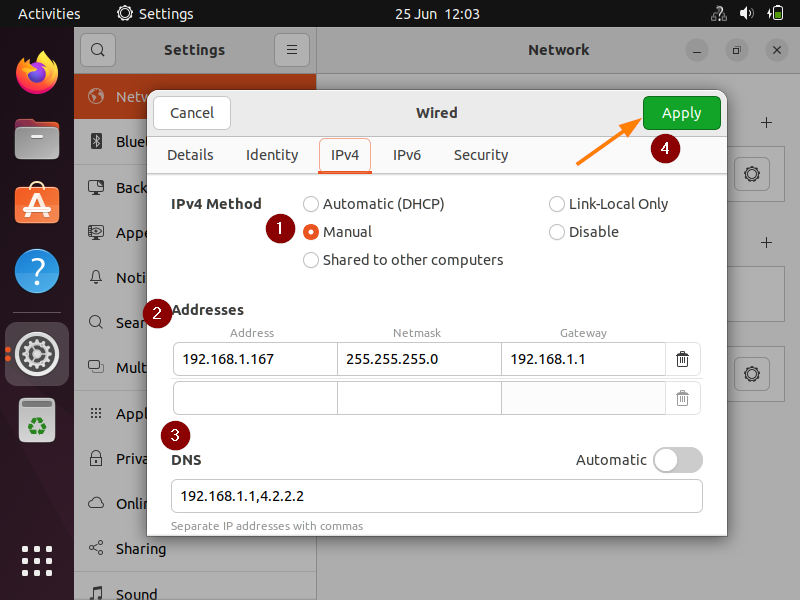 No Internet Connection With Static Ip; Ubuntu Server 22.04 Lts – GZVZU
A Little Caveat (But Don’t Worry)
Make sure you pick an IP address outside your router’s DHCP pool range (usually found in your router settings). Otherwise, your router might give that same IP to someone else, and you’ll have a dueling IP situation—like two people claiming the same parking space. Avoid that drama.
Also, if you’re using Wi-Fi on your server (shame, but we don’t judge), the process is almost identical—just edit a different config file. Pro tip: wired is always more stable for a server. Your downtime will thank you.
The Uplifting Note (You’re Ready for More)
Congratulations! You just gave your Ubuntu server a permanent home. It’s no longer a digital nomad; it’s a proud, stable member of your network family. That feeling when ssh connects instantly, every time? That’s your victory lap.
Now you might be thinking, “What else can I tweak?” Maybe a static IP for your printer? A dedicated DNS server? A web server that never loses its way? The door is open. You’ve proven you can take control of your digital world—one config file at a time.
So go ahead, set that static IP, and then connect your friends, your media, your dreams. Your server is waiting, and now it knows exactly where to be. You’ve got this—and the network loves you for it.
