How To Search With A Photo In Google

So, picture this: you’re scrolling through your phone, and you see a stunning pair of shoes on a stranger in a coffee shop. You need them. But you have no idea what brand they...
So, picture this: you’re scrolling through your phone, and you see a stunning pair of shoes on a stranger in a coffee shop. You need them. But you have no idea what brand they are, and asking a stranger feels… weirdly invasive? Or maybe you’ve got a mystery plant in your backyard that’s either a rare orchid or an aggressive weed. What’s a curious soul to do? Enter the magic trick that makes you look like a tech wizard: searching with a photo in Google. It’s like having a superpower, but without the cape (though, honestly, wear a cape if you want—I’m not judging).
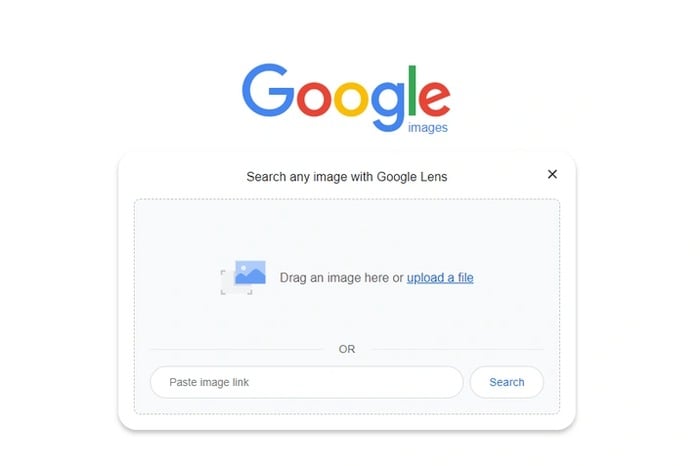
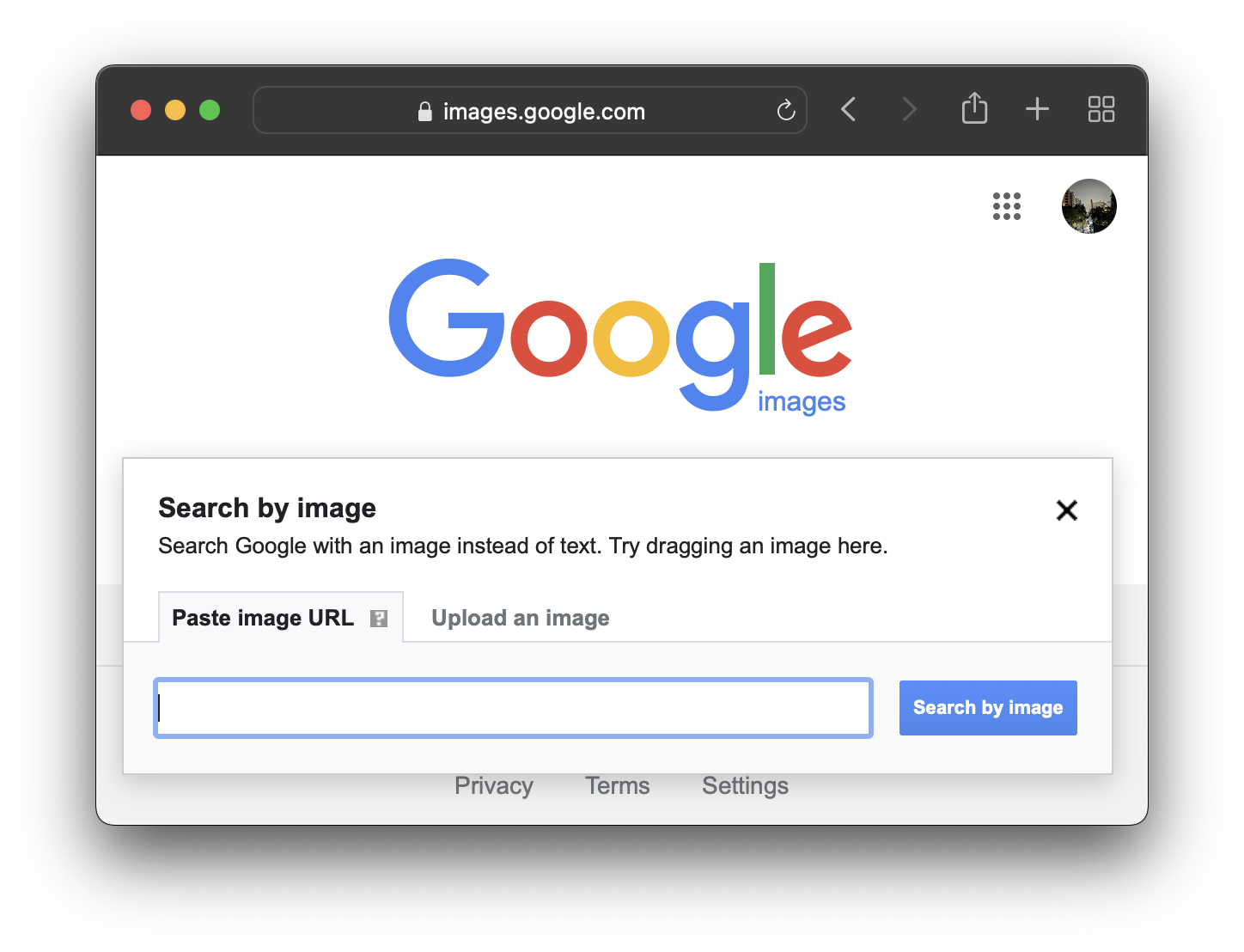
Let’s break it down, shall we? First, the old-school method for desktop warriors. Open your browser, head to images.google.com, and spot that tiny camera icon in the search bar. Click it. A box pops up, and you can either paste a URL of an image (maybe that shoe photo you snagged from Instagram) or upload a file straight from your computer. Hit search, and boom—Google becomes your personal detective, scanning billions of images to find matches or visually similar items. It’s like giving Google a photo of your friend and saying, “Find their long-lost twin.” And it usually works.
Now, if you’re like me and your desk is a disaster zone of coffee cups, the mobile method is your BFF. Grab your phone. If you’re on an Android device, use Google Photos or the Google App (the one with the colorful “G”). Tap the little lens icon in the search bar—yes, that’s Google Lens. If you’re on iOS, same deal: download the Google App or use the Chrome browser. Take a screenshot of that mystery plant, or snap a photo of the shoes in the wild. Then, open Google Lens, point it at the image, and let the algorithm do its happy dance. It’ll identify everything: from the exact pair of sneakers to the species of that weird bug on your window sill. True story: I once used it to identify a painting at a flea market, and it turned out to be a cheap print of a real Monet. My wallet was saved, and my ego was slightly bruised. You win some, you lose some.
Must Read
Here’s a pro tip: play around with crop and refine. If your photo has a lot of background noise (like, say, a messy room in the background of that shoe pic), crop the image to focus on the object itself. Google gets flustered with clutter—it’s like trying to listen to someone at a rock concert. Be a good friend to Google and give it a clear visual signal. Also, remember that not every search will yield a perfect match. Sometimes it’ll show you visually similar items, like “close, but not quite.” That’s okay! It’s like finding a cousin instead of a sibling. You can still get what you need—or at least a laugh when it suggests a watermelon instead of a handbag.
 Reverse Image Search Engines Google Chrome - Infoupdate.org
The best part? This trick works for absolutely everything. Find a landmark on vacation? Snap a photo, and Google will tell you the history, the best time to visit, and if there’s a gift shop full of overpriced snow globes. See a recipe you love in a magazine? Take a picture, and it’ll find you similar dishes. I even used it to identify a mystery stain on my favorite sweater. Turns out it was… well, no, we don’t talk about the stain. But the point is: you’re a digital explorer now.
So go forth, you beautiful, curious creature! Snap photos of random things. Impress your friends by identifying a bird in two seconds flat. Solve mysteries that have baffled you since 2017. And remember: the next time you’re lost, both in life and in a shopping dilemma, let your camera be your compass. The world is full of visual clues, and you, my friend, just got a backstage pass. Happy hunting—and may your searches be ever fruitful, your weeds never mistaken for orchids, and your stains… well, let’s just say, some mysteries are better left to Google.