How To Play Dvd With Windows Media Player

There is a special kind of comfort in settling down to watch a movie that you hold in your hands. Whether it’s a beloved classic from your childhood, a behind-the-scenes docum...
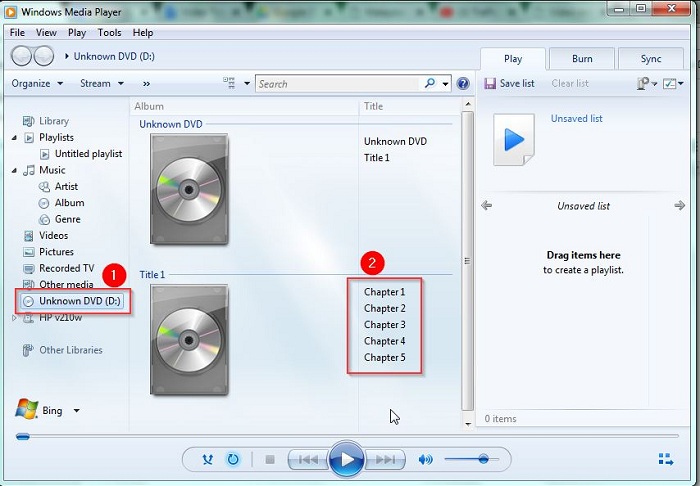
There is a special kind of comfort in settling down to watch a movie that you hold in your hands. Whether it’s a beloved classic from your childhood, a behind-the-scenes documentary, or a foreign film that never made it to streaming services, a physical DVD still offers a reliable and tangible experience. Unlike buffering digital streams, a DVD provides uncompressed audio and video quality that many enthusiasts still value. Windows Media Player, a built-in tool on many Windows computers, can help you access that experience. Its key purpose is simple: to play the disc without the need for additional software, turning your computer into a portable home theater. This is especially useful when traveling with a laptop or when you have a large DVD collection but no dedicated player.
Before you begin, you must ensure your computer has a DVD drive. If you own a modern ultra-thin laptop, you might need an external USB DVD drive, which you can purchase at most electronics stores. Once you have the hardware, insert the DVD into the drive. Windows Media Player often launches automatically when it detects a disc. If it does not, you can open the program manually by searching for "Windows Media Player" in the Start menu. The player will then read the disc. A common mistake here: do not click through prompts to "rip" or "copy" the movie immediately. For now, simply wait for the Now Playing mode to appear, which is your viewing interface.
A typical DVD includes a main menu with options like "Play Movie," "Scene Selection," and "Special Features." You can navigate these options using your keyboard arrows or mouse. Windows Media Player will display these menus just like a standard DVD player would on a TV. However, an important detail: DVD playback is not supported in all versions of Windows 10 and 11 by default. Microsoft removed the necessary DVD decoder codec from newer versions due to licensing costs. If you get an error message saying "A compatible DVD decoder is not installed," do not panic. You have two options: install a free third-party software like VLC Media Player (which is excellent for DVDs), or purchase the Windows DVD Player app from the Microsoft Store. For this article, we assume you have the decoder installed.
Must Read
Once playback begins, you gain control over the playback toolbar at the bottom of the window. Here, you can pause, stop, or skip chapters. A useful tip: press Alt + Enter to toggle full-screen mode, which eliminates distractions and fills your monitor with the movie. If the video appears stretched or incorrectly sized, right-click inside the player, go to Video Settings, and choose "Fit to Window" or "Maintain Aspect Ratio." This ensures your actors don’t look unnaturally wide. For better audio, check your speaker settings; Windows Media Player can output 5.1 surround sound if your system supports it, creating a cinematic feel in your room.
A scenario where this skill saves the day: imagine you are visiting a friend’s house and they have a huge DVD box set of a TV series, but no DVD player hooked to the television. Instead of watching on a tiny laptop screen, you can connect your laptop to the TV via an HDMI cable. Then, launch Windows Media Player, start the disc, and enjoy the show on the big screen with family or friends. This turns a potentially frustrating waste of time into an evening of shared entertainment. The ability to play DVDs also preserves your investment in physical media, which often includes extras and commentary tracks not available on streaming services.
 Como reproduzir DVDs em um notebook ou desktop com Windows 11
To explore more on your own, try customizing the player’s skin or enabling shuffle for DVD music discs. For movie DVDs, you can frequently switch between audio tracks (director’s commentary or different language dubs) by right-clicking the video, selecting Audio and Language Tracks, and choosing an alternative. Another simple tip: if the DVD’s menu is too slow or you dislike it, many discs allow you to skip the menu entirely by pressing "Play" on your keyboard immediately after inserting the disc. Finally, remember to eject the disc properly: either press the Eject button on your drive, or in Windows Media Player, right-click the disc title in the left pane and choose Eject. This prevents scratches and drive errors.
In summary, playing a DVD with Windows Media Player is a straightforward process that bridges old media with modern technology. By remembering the key steps—checking for a DVD drive, handling decoder issues, and using full-screen mode—you can unlock a library of content that never disappears from the internet. Whether you’re revisiting a childhood favorite or discovering a rare film, this method ensures your computer remains a versatile entertainment hub. So go ahead, dust off that DVD collection, and let Windows Media Player take you on a reliable, buffer-free journey into story and sound.

