How To Make An Email Important In Gmail

Okay, so you're drowning in your Gmail inbox. You've got hundreds of emails, and half of them are newsletters you'll never read. Sound familiar? Of course it does. But what a...
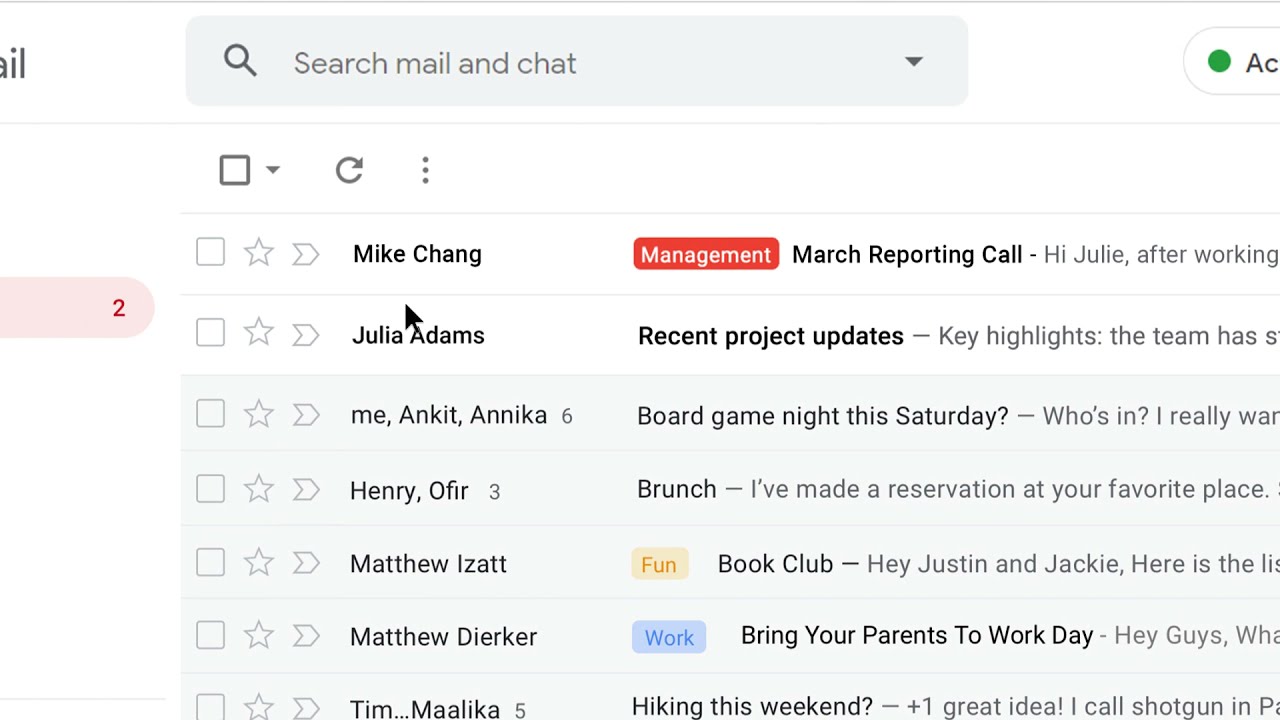
Okay, so you're drowning in your Gmail inbox. You've got hundreds of emails, and half of them are newsletters you'll never read. Sound familiar? Of course it does.
But what about that one email that actually matters? The one from your boss, your best friend, or your mom reminding you to call. You don't want THAT buried under a pile of spam, right?
Luckily, Gmail has some sneaky tricks to make your most important emails pop like confetti at a birthday party. Let's dive in and make your inbox scream "PAY ATTENTION TO ME!"
Must Read
The Easy Button: Star It!
The simplest move? Hit that little star icon next to your email. It's like giving the email a golden badge of honor.
Click it once, and it turns yellow. Click it again, and Google might give you a fun multicolored star if you've enabled multiple star types. Fancy, right?
To enable this, go to Settings → See All Settings → General → Stars. Drag your favorite stars to the "In use" row. Boom, you've got a mini rainbow at your fingertips.
Mark It Important the Smart Way
Gmail actually has an automated system that decides what's important. It uses its spooky smart algorithms to flag emails based on your behavior.
If you open, reply to, or search for a certain sender repeatedly, Gmail thinks "oh, this person matters." That's right Google is basically eavesdropping on your habits to help sort your inbox.
 How to Mark Emails as Important in Gmail (Desktop, Android & iPhone)
You can force the issue by clicking the Mark as important button (the yellow marker icon). It's like telling Google, "Hey, buddy, THIS one is the VIP."
Priority Inbox Is Your New Best Friend
Want to level up? Switch to Priority Inbox mode. Go to Settings → Inbox type → Priority Inbox.
This splits your inbox into sections like "Important and unread," "Starred," and "Everything else." It's like your emails are competing in an all-stars lineup.
Your important emails float right to the top where you can't miss them. Aha! Inbox zero suddenly feels achievable.
Use Filters Like a Pro
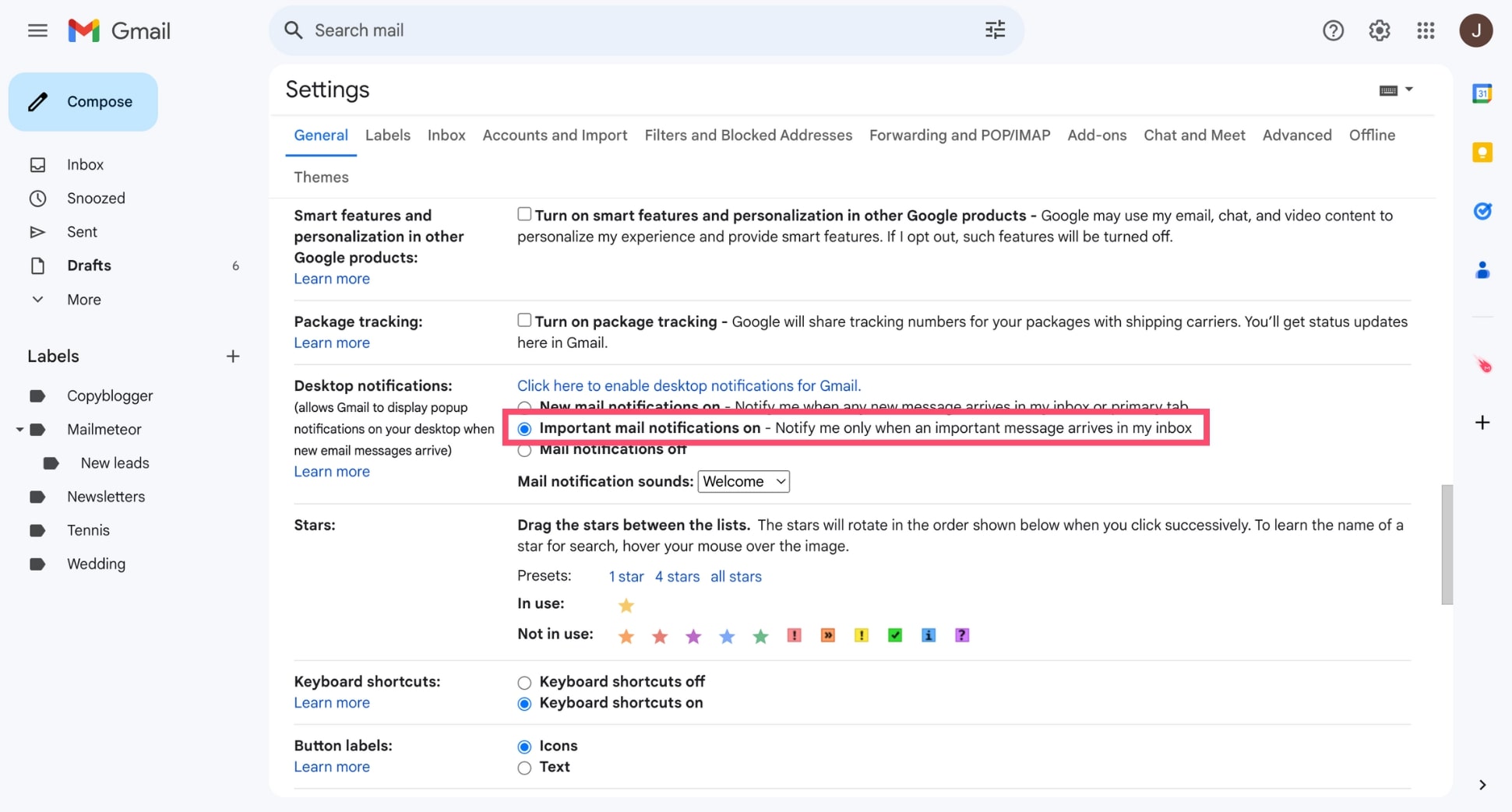
Here's a power move: create a filter to auto-flag important emails. Go to Settings → See All Settings → Filters and Blocked Addresses → Create a new filter.
 Gmail Notifications: How to Manage Alerts on All Your Devices (2026 Guide)
Type in a sender or keyword, then check Mark as important and Always mark it as important. Now every matching email gets the golden treatment automatically.
This is like training a robot to highlight your mail for you. And honestly? Who doesn't want more robots in their life?
Pin It to the Top with Snooze (Sort Of)
Gmail doesn't exactly "pin" emails, but you sure can snooze them. Hover over an email and click the clock icon.
Choose a time for it to resurface at the top of your inbox. It's like saying, "I see you, email, but come back when I'm ready."
Great for when you get a crucial message at 11 PM and want it waiting for you tomorrow at 9 AM. Clever you.
 What Is Important In Gmail – Gmail Labels: Everything you need to know
Labels: The Rainbow of Organization
Don't sleep on Labels. They're like colorful sticky notes for your emails.
Create a label called "IMPORTANT STUFF" and apply it with a quick right-click. Suddenly your inbox looks like a beautifully curated museum instead of a chaotic flea market.
You can even color-code labels to keep things visually fun. Life's too short for boring inboxes.
Wrap It Up!
Making an email important in Gmail is easier than avoiding those "FREE TRIAL" emails. You've got stars, filters, priority inbox, labels, and snooze at your disposal.
Pick your favorite trick or use them all. Who says inbox management can't be a ridiculously fun game?
So go ahead. Make your emails shine. Your future self — who actually finds what they need — will thank you big time.
